Learn how to add a patient/resident and add their information into the system. Add medications and observations to be able to run a MeSA Report. Plan on spending about four minutes per patient/resident when manually entering their information into MeSA for the first time.
Add a New Patient/Resident
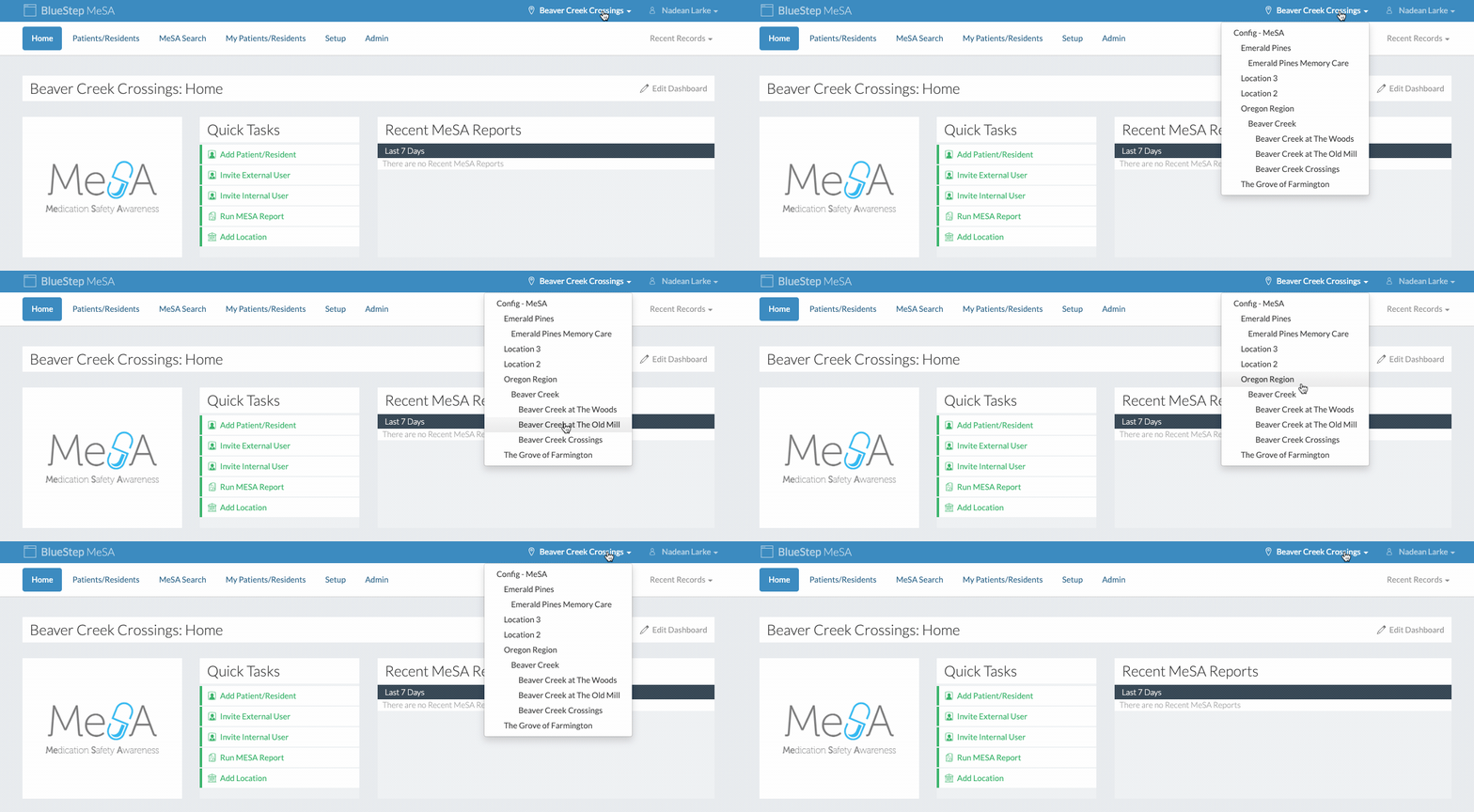
It is important to remember to enter a patient/resident in the correct location. If needed, change between locations by clicking on the Location dropdown and selecting the desired location.
There are two ways to begin to add a new patient/resident.
The easiest way is to click the "Add Patient/Resident" link in the "Quick Tasks" module.
Another way is to click on the "Patients/Residents" tab, then click the "Add Patient/Resident" button.
Fill out the patient/resident's information. All of this information is required, because it is all important when running a MeSA Report. The system will convert LBS to KG for you.
Click the "Save" button to finish.
Navigate the Patient/Resident Record Summary
To navigate to a patient/resident record click on the "Patients/Residents" tab.
Select a patient/resident.
The Record Summary is the 'landing' page when a patient/resident has been selected.
Lists of medications, observations, MeSA Reports, and external users are all available on the Record Summary. New items can be added directly from the Record Summary by clicking on the buttons to the right of the headers.
Red icons signify that there are no items entered for the patient/resident. For example if the "Active Medications" icon is red, it means that the patient/resident doesn't have any saved medications.
Green icons signify that there are items entered for the patient/resident. For example if the "Active Observations" icon is green, it means that the patient/resident does have at least one saved observation.
Click on the header to expand the view to see the list.
Add a New Medication
When in a patient/resident record, click on the "Add Medication" button.
Fill out the medication information.
It is very important that the correct information is entered into the form.
As you type the medication name into the "Medication" text field, a suggestions list will appear. This list is sourced from the national Medi-Span database.
Click the "Save" button to finish.
Add a New Observation
When in a patient/resident record, click on the "Add Observations" button.
Select the observed behaviors and conditions.
The observed behaviors and conditions are categorized into groups to make it easier to find specific behaviors and conditions.
This is not a comprehensive list of all behaviors and conditions, only those deemed potentially harmful and tied to standardized medication side-effect data.
Type any observation into the "Filter" text field to search for specific behaviors or conditions. If a certain observation you are looking for isn't in the list type it into the "Filter" text field. The search uses synonyms to match manually entered observations to observations already in the list.
Set the start dates for the selected observations.
It is ideal that the start dates for observations are accurate, however if there isn't a record of when the observed behavior began, the MeSA Report will still run properly.